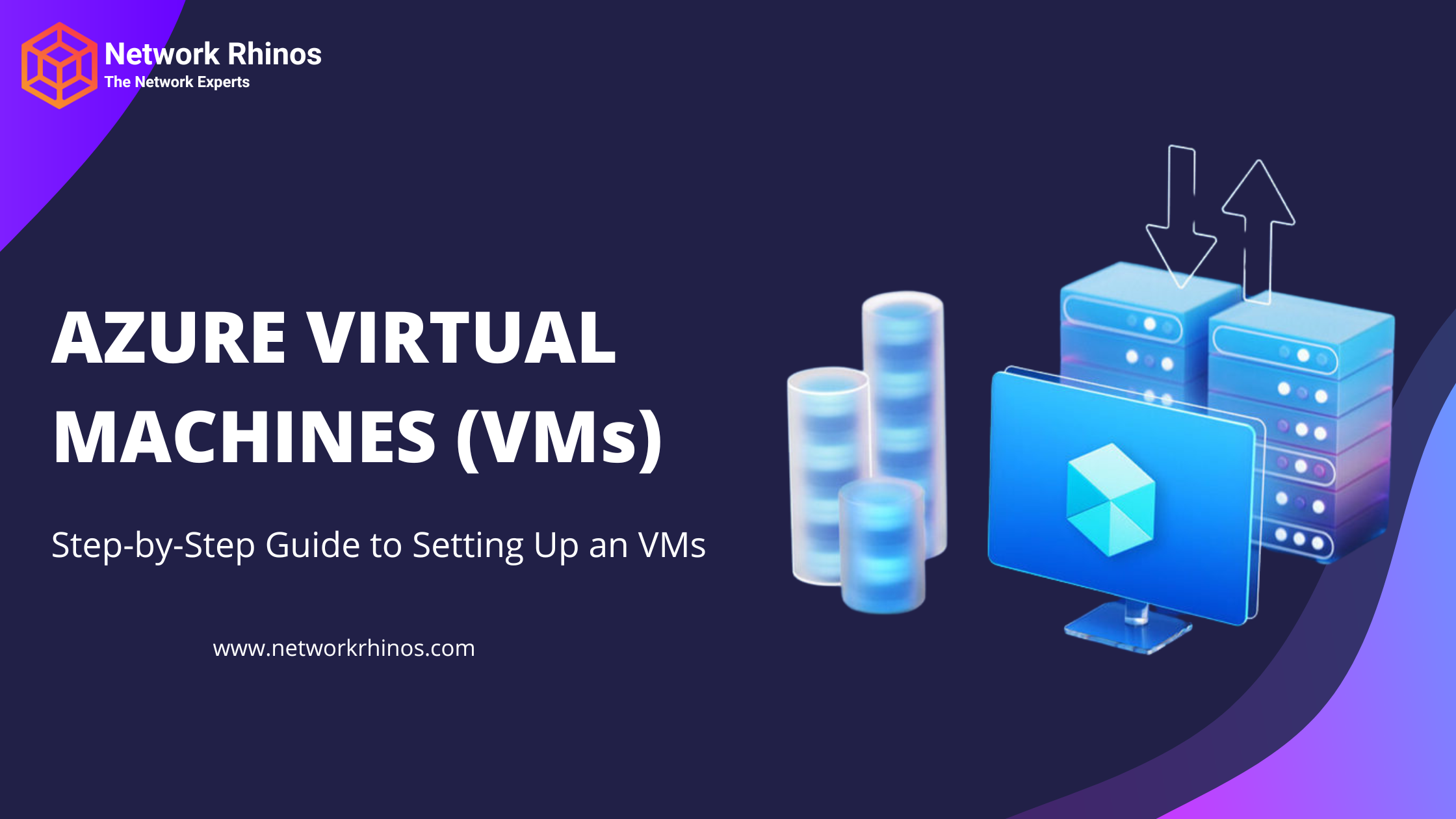
AZURE VIRTUAL MACHINES (VMs)
Step-by-Step Guide to Setting Up an Azure Virtual Machine (VM)
Step 1: Sign in to Azure Portal
- Go to Azure Portal.
- Sign in with your Microsoft Azure account.
Step 2: Create a Virtual Machine (VM)
- In the Azure Portal, click on “Create a resource” (top left corner).
- Search for Virtual Machine and select “Create”.
Step 3: Configure Basic Settings
- Subscription: Select your Azure subscription.
- Resource Group: Click “Create new” or use an existing one.
- Virtual Machine Name: Choose a name (e.g., “MyAzureVM”).
- Region: Choose a nearby data center (e.g., Central US, East Asia).
- Image: Select the OS (Windows Server, Ubuntu, etc.).
- Size: Pick the machine size (Standard B2s is good for testing).
Step 4: Set Up Administrator Credentials
- For Windows, enter a username and password.
- For Linux, choose SSH key or password authentication.
Step 5: Configure Networking
- Under Networking, select Virtual Network (default or create a new one).
- Set Public IP to enabled (if you want to access it remotely).
- Allow RDP (for Windows) or SSH (for Linux) under Inbound rules.
Step 6: Disk & Storage Options
- Select Standard SSD for better performance.
- Leave other settings as default unless you need more storage.
Step 7: Review & Create
- Click “Review + create”.
- Verify all settings and click “Create”.
Step 8: Connect to Your VM
After deployment, go to Virtual Machines → Your VM → Connect:
- Windows: Use RDP (Remote Desktop Protocol).
- Open Remote Desktop on your PC.
- Enter Public IP of your VM.
- Login using the username & password you set.
- Linux: Use SSH (Secure Shell).
Open a terminal and type:
ssh username@your-public-ip
Step 9: Install Software (Optional)
Once logged in, you can install software based on your needs:
- Windows: Use PowerShell or GUI to install apps.
- Linux: Use commands like apt-get install or yum install.
Step 10: Shutdown & Delete (If Not Needed)
- Go to Virtual Machines → Select your VM.
- Click Stop (to save costs) or Delete (to remove completely).